

verb:resource permissions, reset passwords, and deactivate users — all from the admin UI. For a conceptual overview of how permissions are evaluated, see RBAC.
Users
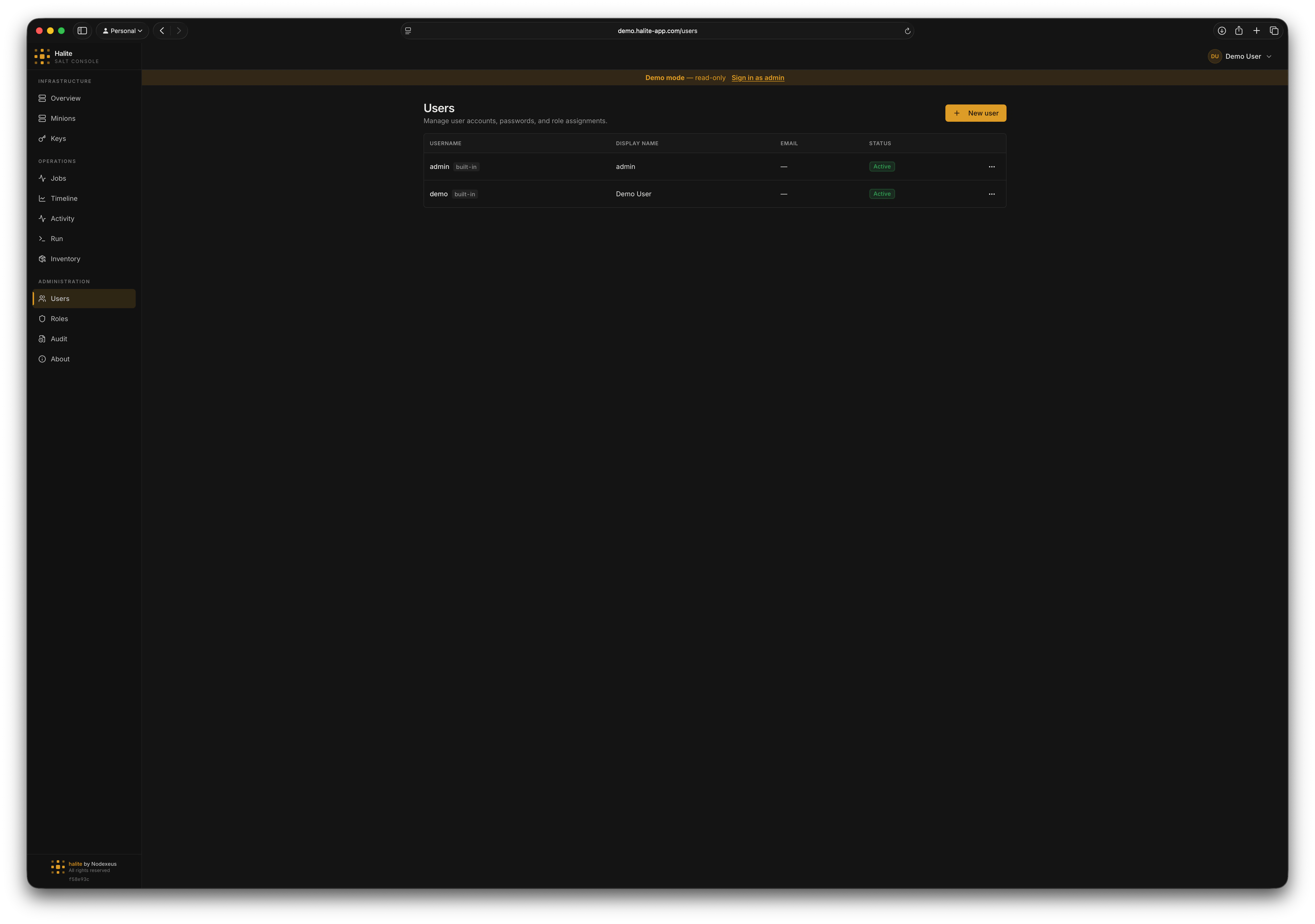
User list showing username, display name, active status, and last login
User fields
Each user account has the following attributes:Creating a user
1
Open Users
Click Settings → Users in the admin sidebar.
2
Click New User
Fill in the username (required), display name, email, and initial password (minimum 8 characters). Leave Must change password checked so the user sets their own password on first login.
3
Assign roles (optional)
Select one or more roles from the role picker. You can also assign roles later from the user detail panel.
4
Save
Click Create. The new user appears in the list immediately. The action is recorded in the audit log.
Updating a user
You can change a user’sdisplay_name, email, or is_active status via PATCH /api/users/{user_id}. You cannot change a user’s username after creation.
To deactivate a user, set is_active to false. Deactivated users cannot log in and any existing sessions are preserved until they expire naturally. To terminate active sessions immediately, trigger a password reset (which calls end_sessions_for_user on the backend).
Resetting a password
POST /api/users/{user_id}/password with a new_password (minimum 8 characters) and must_change_pw flag. Setting a new password terminates all existing sessions for the target user.
Deleting a user
Built-in users cannot be deleted — the API returns409 Conflict. You also cannot delete your own account. Deletions are permanent; the audit log retains a record of all actions the deleted user performed.
Roles
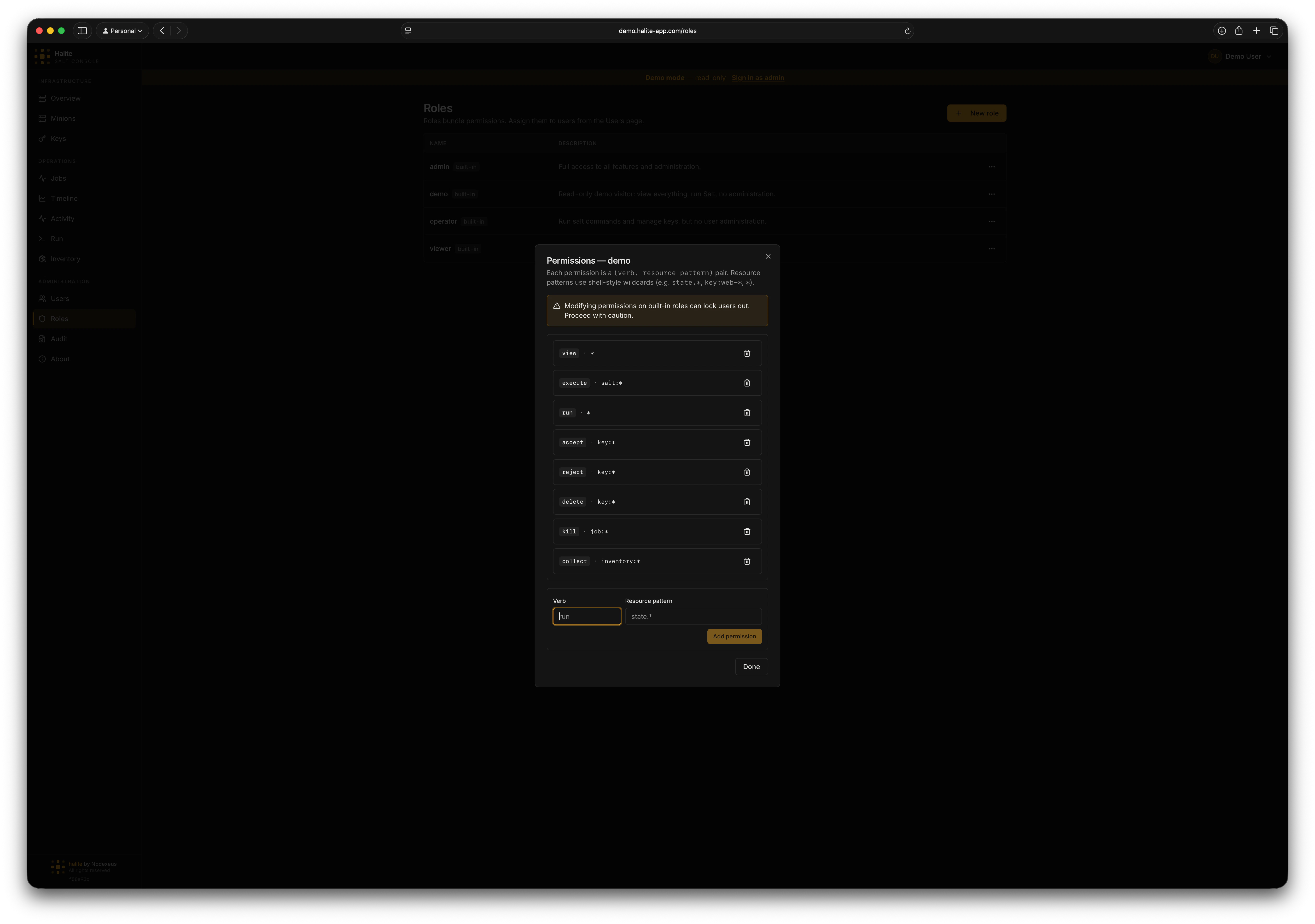
Role editor showing role name, description, and permission list
Built-in roles
Halite ships three built-in roles that cannot be deleted:Custom roles
Create a custom role withPOST /api/roles (requires manage_role:role:*). Provide a name (1–64 characters) and optional description. Once created, add permissions one at a time with POST /api/roles/{role_id}/permissions:
resource_glob is matched against the resource path at request time using glob semantics. For example, "job:*" matches any job resource. Remove an individual permission with DELETE /api/roles/{role_id}/permissions/{permission_id}.
Built-in roles cannot be deleted and their permissions cannot be modified.
Assigning roles to users
POST /api/users/{user_id}/roles with {"role_id": "<uuid>"}. A user can hold multiple roles — permissions are unioned across all of them. Remove a role assignment with DELETE /api/users/{user_id}/roles/{role_id}.
Example: creating a read-only inventory auditor
1
Create a custom role
Go to Settings → Roles and click New Role. Name it
inventory-auditor.2
Add permissions
Add one permission:
verb = view, resource_glob = inventory:*. This is the same permission the viewer role has for inventory.3
Create the user and assign the role
Create a new user account and assign the
inventory-auditor role. The user can now browse the Inventory page but cannot trigger a refresh or access any other sensitive areas.Permissions
User routes (/api/users)
Role routes (/api/roles)
Both
manage_user and manage_role are granted exclusively to the built-in admin role.