

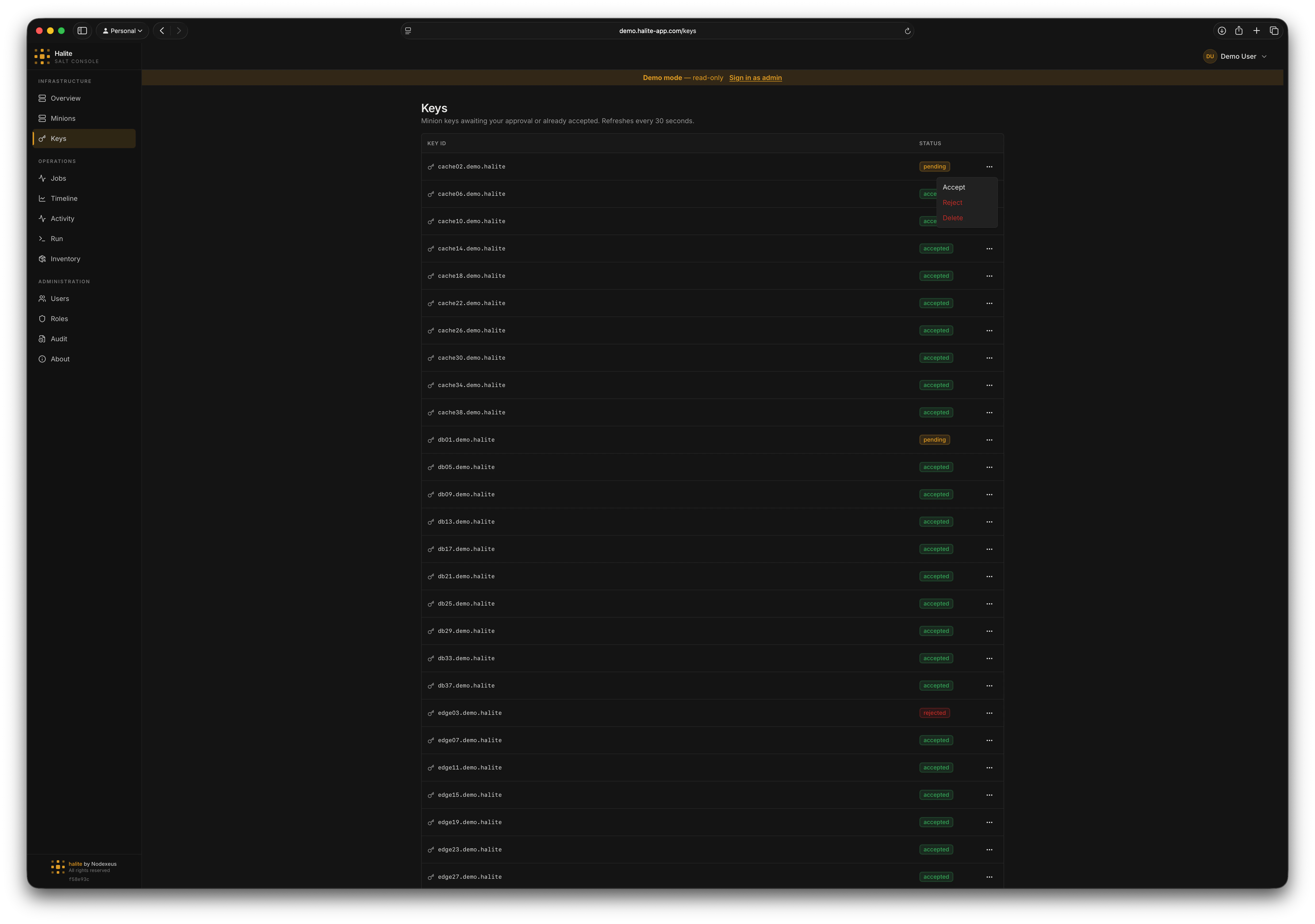
Keys list showing accepted, pending, rejected, and denied keys
Key states
Halite maps the Salt master’s internal key buckets to four human-readable states:Only minions with
accepted keys can receive Salt commands. Pending, rejected, and denied minions show up in the list so you can act on them without leaving the console.Key actions
Accepting a pending key
1
Open the Keys page
Click Keys in the left sidebar. Pending keys appear at the top of the list with a yellow badge.
2
Identify the key to accept
Verify the minion ID matches a host you expect to onboard. If you are unsure, compare it with entries in your infrastructure inventory before proceeding.
3
Click Accept
Click the Accept button on the key row. Halite sends a
POST /api/keys/{key_id}/accept request to the Salt master.On success, the key moves from pending to accepted and the minion becomes eligible to receive jobs immediately.4
Confirm the key is accepted
The list re-fetches automatically. The minion should now appear with an
accepted badge. You can also verify on the Minions page — the minion will show as online once its presence is detected.Rejecting a key
Click Reject on any pending key to explicitly reject it. The key moves torejected state. The minion will see a SaltReqTimeoutError when it tries to publish and will not receive commands until you accept its key.
Permissions
The built-in operator role has all four permissions. The built-in viewer role has
view:key:* only and cannot perform any mutating actions.
For details on assigning permissions, see RBAC.